Password Boss User Management
Learn how to effectively manage users in Password Boss.

Written by Owen Parry
Updated at August 20th, 2026
Table of Contents
Overview
Password Boss administrators can create, manage, secure, and remove user accounts through the Password Boss Portal. User accounts may be managed directly by Password Boss or provisioned through an Active Directory or Microsoft Entra ID connector.
Understanding how an account is managed is important because it determines where administrators should make user changes. Actions performed in the wrong system may be overwritten during the next directory synchronization or may not be available in the Password Boss Portal.
This article explains how to identify the management source for a user, perform common account actions, edit user settings, troubleshoot access problems, and safely handle destructive actions.
How Password Boss Users Are Managed
Managed by Password Boss
A user listed as Managed by PB was created directly through the Password Boss Portal. These accounts are managed entirely within Password Boss. Administrators can edit account details, change group membership, assign administrative access, disable the account, or delete the user through the portal.
Managed by Active Directory
A user listed as Managed by Active Directory was created by the Password Boss Active Directory Connector. User creation and directory-controlled changes should normally be completed in Active Directory. Changes are then synchronized to Password Boss by the connector. If the connector is removed, administrators can use Manage in Password Boss to convert the account to direct Password Boss management.
Managed by Microsoft Entra ID
A user listed as Managed by Azure AD was created by the Microsoft Entra ID Connector, formerly called the Azure Active Directory Connector. User and group assignments should normally be managed through Microsoft Entra ID. The connector then updates the corresponding Password Boss accounts. The Password Boss Entra ID connector supports creating and updating user accounts from the connected directory.
User Email Addresses
The email address associated with an existing Password Boss user cannot be changed.
If a user's email address changes:
- Export the user's existing Password Boss data.
- Create a new account using the new email address.
- Import the exported data into the new account.
- Verify that the user can access the new account and required shared items.
- Remove the previous account only after confirming that the migration is complete.
Make sure the export is stored securely and deleted when the migration is finished.
Actions for User Accounts
Available Actions
Select the checkbox next to one or more users to display the actions available for those accounts.
When multiple users are selected, Password Boss only displays actions that apply to every selected account. If an expected action is missing, select one user at a time to determine whether an account's status or management source is preventing the action.
Delete Users
Delete users permanently removes the user's Password Boss account, including the user's saved passwords, notes, and other stored items.
Any shares owned by the user may also be deleted.
Before deleting a user:
- Review the user's owned shares and business credentials.
- Transfer required access to another user or managed vault.
- Export or recover any required business data according to company policy.
- Confirm that the account is no longer required.
- Delete the user only after the offboarding review is complete.
Warning: Deleting a user is destructive. Do not use this option simply to prevent temporary access.
Disable Users
Disable users prevents the selected users from signing in to the Password Boss application and portal.
Disabling an account is appropriate when access must be suspended without immediately deleting the user's stored data. Common examples include an extended leave, an active security investigation, or an offboarding process that has not yet been completed. Disabling an account does not replace a complete offboarding review. Administrators should still review business passwords, shares, devices, groups, and vault access.
Enable Users
Enable users is available for accounts that are currently disabled.
Enabling the account allows the user to sign back in to Password Boss. After enabling an account, ask the user to retry the sign-in process. If the user still cannot sign in, verify their subscription, management source, Master Password status, and Web App access permission.
Convert to Personal Account
Convert to personal account removes the user from the business and converts the account into a standalone personal account with a 30-day Password Boss trial.
Use this option only when the account is registered with a personal email address that the user will continue to control. Do not convert an account using a company-owned email address. The organization may later disable or reassign that mailbox, preventing the former user from accessing the account.
Before converting an account:
- Remove business-owned credentials and sensitive company information.
- Review shares and vault membership.
- Confirm that the email address belongs to the user.
- Document the conversion as part of the offboarding process.
Require Password Change
Require password change requires the user to change their Master Password the next time they access their account through the Password Boss application.
This action may be appropriate when:
- The current Master Password may have been exposed.
- An administrator is responding to a security concern.
- Company policy requires the user to select a new Master Password.
- A temporary credential was used during onboarding.
Requiring a password change does not provide the administrator with access to the user's existing Master Password.
Reset Password
Reset password starts the user's Password Boss account over and deletes all saved passwords and other items stored in the account.
Warning: This option deletes everything in the user's account. It is not a standard password-change option.
Use Require password change when the user still has access and only needs to choose a new Master Password. Use Reset password only when the account must be cleared and the consequences have been reviewed.
Before resetting an account:
- Confirm that the correct user is selected.
- Verify that standard recovery options are not appropriate.
- Review any business information owned by the user.
- Inform the user that their stored data will be deleted.
- Document approval according to your organization's procedures.
Manage in Password Boss
Manage in Password Boss converts a directory-managed account into an account managed directly through the Password Boss Portal.
This action is commonly used when accounts were created through an Active Directory Connector that has since been removed. After converting the account, future user changes must be performed directly in Password Boss. Confirm that the account is no longer expected to receive updates from the original connector before completing the conversion.
Editing Users
Select Edit next to a user to review and manage settings for that account.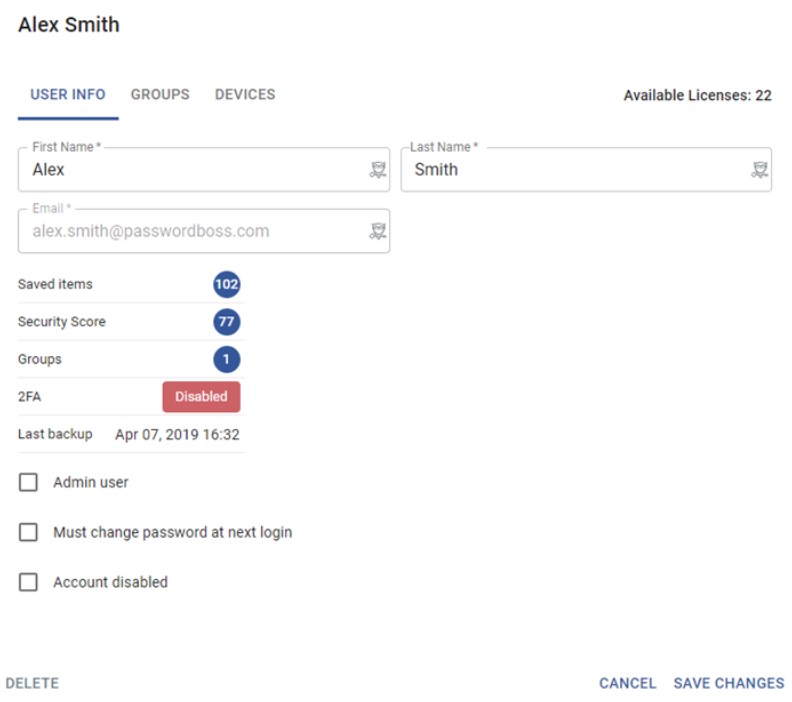
Depending on the account's status and management source, administrators may be able to:
- Change the user's first and last name.
- Review available account statistics.
- Add or remove administrative access.
- Require a Master Password change.
- Disable the account.
- Modify group membership.
- Remove devices from the account.
- Delete the user's account.
Some fields or actions may not be available for accounts controlled by Active Directory or Microsoft Entra ID. Make directory-controlled changes in the appropriate identity platform and allow the connector to synchronize them to Password Boss.
Changing a User's Name
Administrators can update the user's first and last name without creating a new account. Changing the display name does not change the user's email address or account ownership.
Managing Administrative Access
Administrative access should be limited to users who require it for their job responsibilities. Review administrative access regularly and remove it when it is no longer needed. Avoid granting administrative rights only to resolve a normal user-access problem.
Managing Group Membership
Groups can simplify access management by placing users with similar responsibilities into a common structure. Before removing a user from a group, review whether the group provides access to shared business credentials or other required resources.
Removing Devices
Administrators can remove devices associated with a user's account.
Consider removing a device when:
- A company device is lost or stolen.
- A computer or mobile device is replaced.
- A user leaves the organization.
- An unfamiliar device appears on the account.
- The user is experiencing a device-registration problem.
Removing a device does not delete the entire user account.
Web App Access
Understanding the Web App Access Error
A user may receive the following message when attempting to access the Password Boss Web App:
“Access to the web app is not activate for your account, please contact your IT administrator.”
This message means the user's account exists, but Web App access has not been enabled for that account at the administrative level.
The user may still have:
- An active Password Boss subscription.
- Access through the Password Boss desktop application.
- Access through the Password Boss mobile application.
- Normal synchronization on supported applications.
Desktop or mobile access working while Web App access fails is expected in this state. It does not necessarily indicate that the entire account is disabled or that the subscription is inactive. This troubleshooting gap was specifically identified for the current user-management article.
Advanced Use Cases
Moving Away from a Directory Connector
Before removing an Active Directory or Microsoft Entra ID connector:
- Identify all accounts managed by the connector.
- Determine which users should remain active.
- Confirm how future onboarding and offboarding will be handled.
- Convert applicable accounts to Password Boss management.
- Test account access after the transition.
Do not remove the connector without first establishing ownership of the affected accounts.
Temporary Access Suspension
Use Disable users when access must be suspended temporarily but the organization is not ready to delete the account. This preserves time for the administrator to review shares, vaults, groups, devices, and other business access before making a permanent decision.
Employee Offboarding
A secure offboarding process should include:
- Disabling the user to prevent additional access.
- Reviewing credentials, shares, and vault membership.
- Transferring required business access.
- Removing registered devices where appropriate.
- Determining whether the account should be deleted or converted.
- Documenting the completed actions.
Do not delete the user before confirming that business-owned information is no longer dependent on the account.
Bulk User Management
When managing multiple accounts, verify that every selected account is eligible for the intended action.
If an action does not appear:
- Reduce the selection to a single user.
- Check whether the account is enabled or disabled.
- Review whether the account is managed by Password Boss or a connector.
- Confirm that your administrator role permits the action.
Best Practices
- Use groups to simplify user access and administration.
- Limit administrative access to authorized personnel.
- Disable accounts before deleting them during offboarding.
- Review owned shares and business credentials before removing a user.
- Manage directory-controlled users through their source directory.
- Confirm that connector synchronization has completed before making additional changes.
- Use personal email addresses only when converting users to personal accounts.
- Treat Reset password and Delete users as destructive actions.
- Document account conversions, resets, and deletions.
- Review registered devices and administrative permissions regularly.
- Grant Web App access only when required by the user and permitted by company policy.
- Test changes with a single user before performing bulk actions.
Troubleshooting
An Expected Action Is Missing
If an account action is not displayed:
- Select only the affected user.
- Review whether the account is enabled or disabled.
- Check whether the account is managed by Password Boss, Active Directory, or Microsoft Entra ID.
- Confirm that your administrator account has the required permissions.
- Refresh the portal and retry.
Some actions only appear when they apply to the selected account's current state.
Changes to a Directory-Managed User Do Not Remain
The directory connector may overwrite changes made directly in Password Boss. Make the change in Active Directory or Microsoft Entra ID, then allow the connector to synchronize it to Password Boss.
A User Cannot Sign In Anywhere
Verify:
- The account is enabled.
- The user's subscription is active.
- The user is entering the correct email address.
- A Master Password reset or forced change is not pending.
- The account has not been deleted or converted.
- The user's directory assignment remains valid, if applicable.
The Desktop or Mobile App Works, but the Web App Does Not
If the user receives the Web App access error while other Password Boss applications continue to work, check the user's Web App access permission. Do not reset or delete the account solely because Web App access is unavailable.
A Recently Enabled User Still Cannot Sign In
Ask the user to:
- Sign out of Password Boss.
- Close the application or browser.
- Reopen Password Boss.
- Sign in again using the account's registered email address.
- Test a private browser window if the problem is limited to the Web App.
If the account is directory-managed, also verify that its source-directory assignment is active.
The Wrong User Was Deleted or Reset
Stop making additional changes and contact CyberFOX Support immediately.
Provide:
- The affected user's email address.
- The administrator who performed the action.
- The approximate time of the action.
- Whether the account was deleted or reset.
- Whether organizational backup or recovery features were configured.
Recovery availability depends on the account configuration and the action performed. Do not promise that deleted data can be restored.
Security and Sync Behavior
Directory Synchronization
Accounts managed by Active Directory or Microsoft Entra ID should be administered through their connected directory whenever possible. Direct portal changes may not persist if the connector later synchronizes different values or assignments.
Account Disabling
Disabling a user prevents account access but is different from deleting the account. Use disabling as the safer first step when investigating suspicious activity or processing an employee departure.
Account Deletion and Reset
Deleting a user or resetting a password can permanently remove stored information. Always verify the user, review business-owned data, and document authorization before performing either action.
Web App Access
Web App access is separate from general account enablement and subscription status. A user can have a valid, active account and continue using supported desktop or mobile applications while being unable to access the Web App.
Administrator Visibility
Password Boss administrators manage user accounts, policies, groups, and related administrative settings. Administrators do not receive a user's Master Password simply by managing the account.
Related Articles